How Does It Work?

From account to report – this is how Charfsi works step by step.

Does it seem complicated? Don't worry. You're guided at every step – you can't go wrong. The steps will lead you through.

Step-by-step guide

1

👤 Account & login

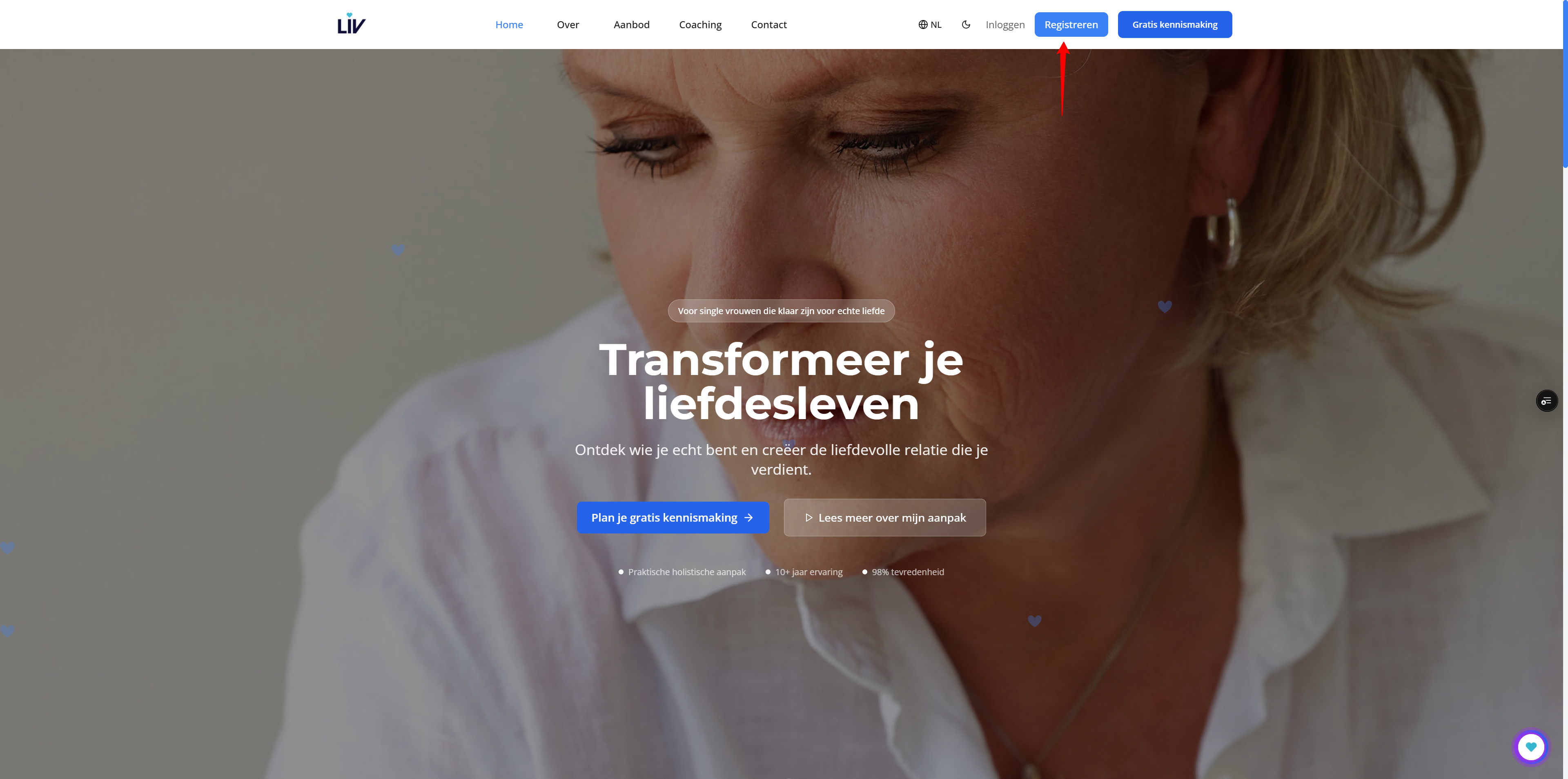
Create an account on the LIV website and log in. Charfsi only works when you are logged in.

Step 1: Account & login – Screenshot: login page or dashboard
🔍 Click to enlarge
2

💳 Buy credits

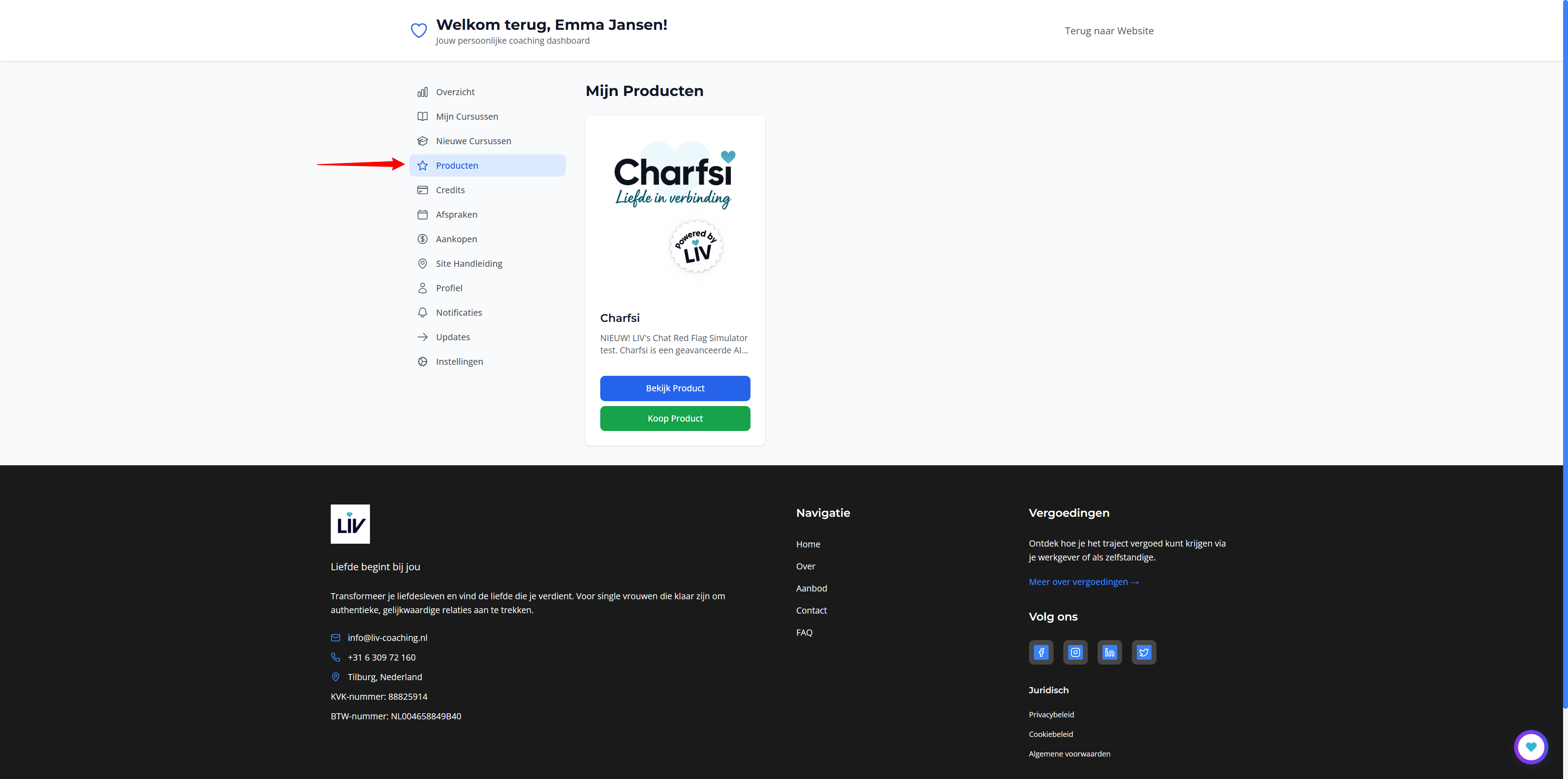
Go to your dashboard or the Charfsi page and buy credits (1 credit = 1 test + report). Choose a package that suits you.

Sub-steps before the chat:

  1. View packages
  2. Pay & checkout
  3. Select package
  4. Checkout
  5. Payment
  6. Confirmation
  7. Credits in dashboard
  8. Complete payment
  9. Package overview
  10. Finish payment
Step 2: Buy credits – View packages: Screenshot: credit packages
🔍 Click to enlarge
Step 2: Buy credits – Pay & checkout: Screenshot: payment
🔍 Click to enlarge
Step 2: Buy credits – Select package: Screenshot: credit packages
🔍 Click to enlarge
Step 2: Buy credits – Checkout: Screenshot: payment
🔍 Click to enlarge
Step 2: Buy credits – Payment: Screenshot: credit packages
🔍 Click to enlarge
Step 2: Buy credits – Confirmation: Screenshot: payment
🔍 Click to enlarge
Step 2: Buy credits – Credits in dashboard: Screenshot: credit packages
🔍 Click to enlarge
Step 2: Buy credits – Complete payment: Screenshot: payment
🔍 Click to enlarge
Step 2: Buy credits – Package overview: Screenshot: credit packages
🔍 Click to enlarge
Step 2: Buy credits – Finish payment: Screenshot: payment
🔍 Click to enlarge
3

🚀 Start Simulator

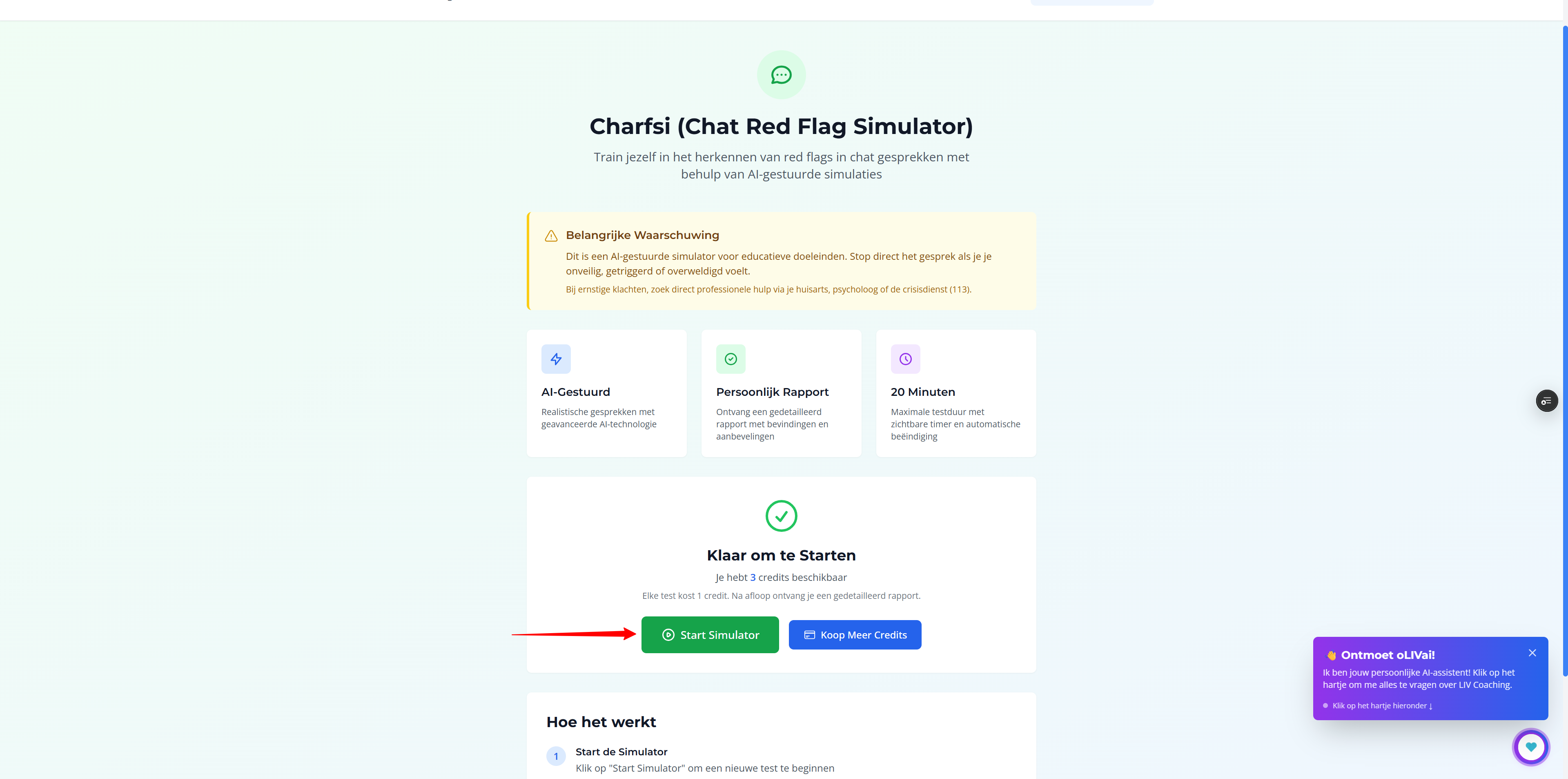
Click "Start Simulator". During peak times (more than 50 users testing simultaneously) you may be placed in a queue – you will be redirected automatically.

Step 3: Start Simulator – Screenshot: queue or redirect
🔍 Click to enlarge
4

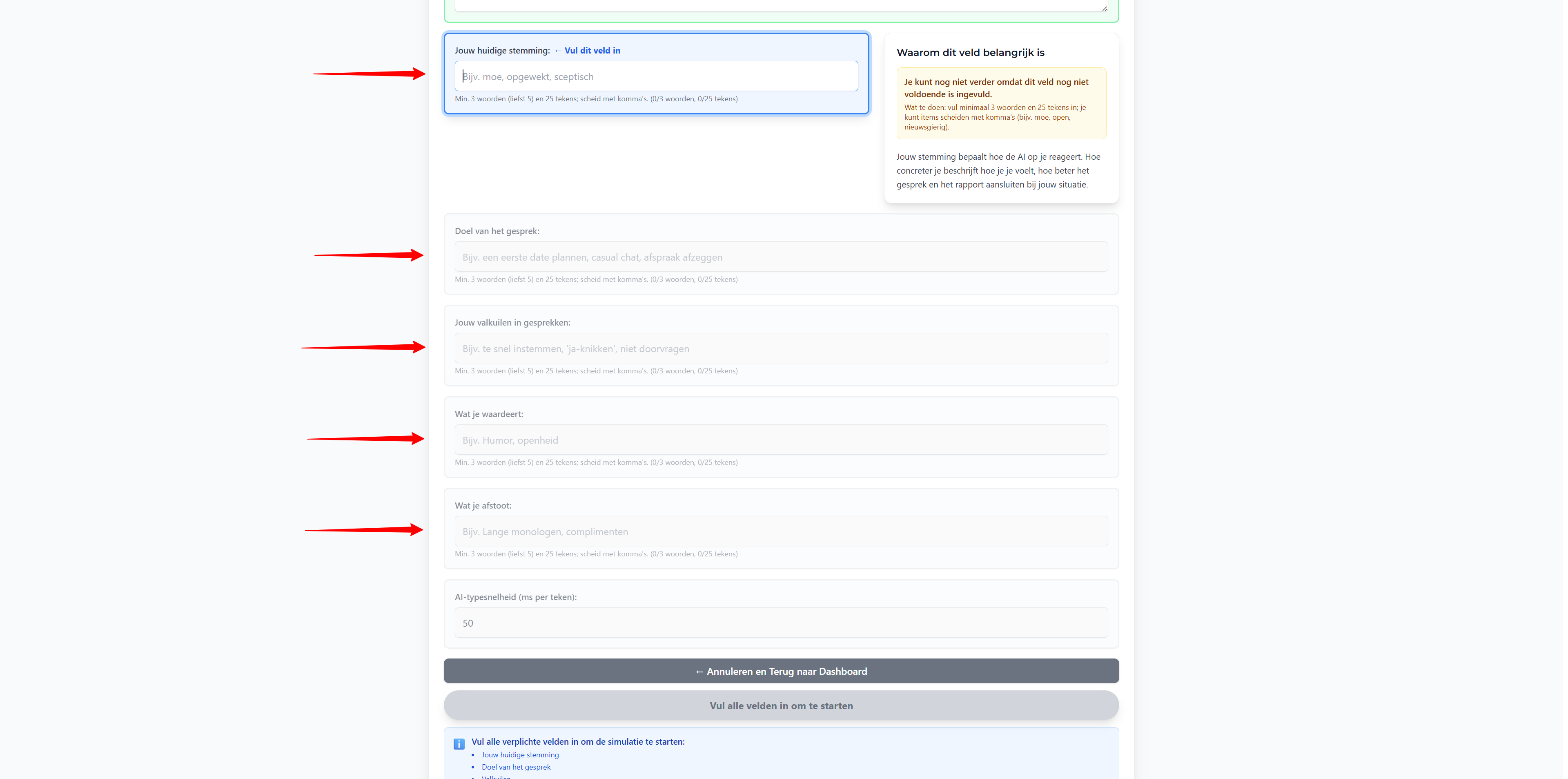
⚙️ Setup: before you start chatting

You go through a few short steps before the chat begins. No credit is used until you send your first message – if you cancel earlier, your credit remains.

Sub-steps before the chat:

  1. Welcome & terms
  2. Welcome (detail)
  3. Read & accept terms
  4. Choose persona
  5. Name & optional: share with coach
  6. Start the chat
Step 4: Setup: before you start chatting – Welcome & terms: Screenshot: welcome screen with short explanation
🔍 Click to enlarge
Step 4: Setup: before you start chatting – Welcome (detail): Screenshot: welcome screen with short explanation
🔍 Click to enlarge
Step 4: Setup: before you start chatting – Read & accept terms: Screenshot: scroll down, check the box
🔍 Click to enlarge
Step 4: Setup: before you start chatting – Choose persona: Screenshot: choose a preset or describe the type of person yourself
🔍 Click to enlarge
Step 4: Setup: before you start chatting – Name & optional: share with coach: Screenshot: enter your name, option to share report with coach
🔍 Click to enlarge
Step 4: Setup: before you start chatting – Start the chat: Screenshot: "Start simulation" button / begin chat
🔍 Click to enlarge
5

💬 Start chatting

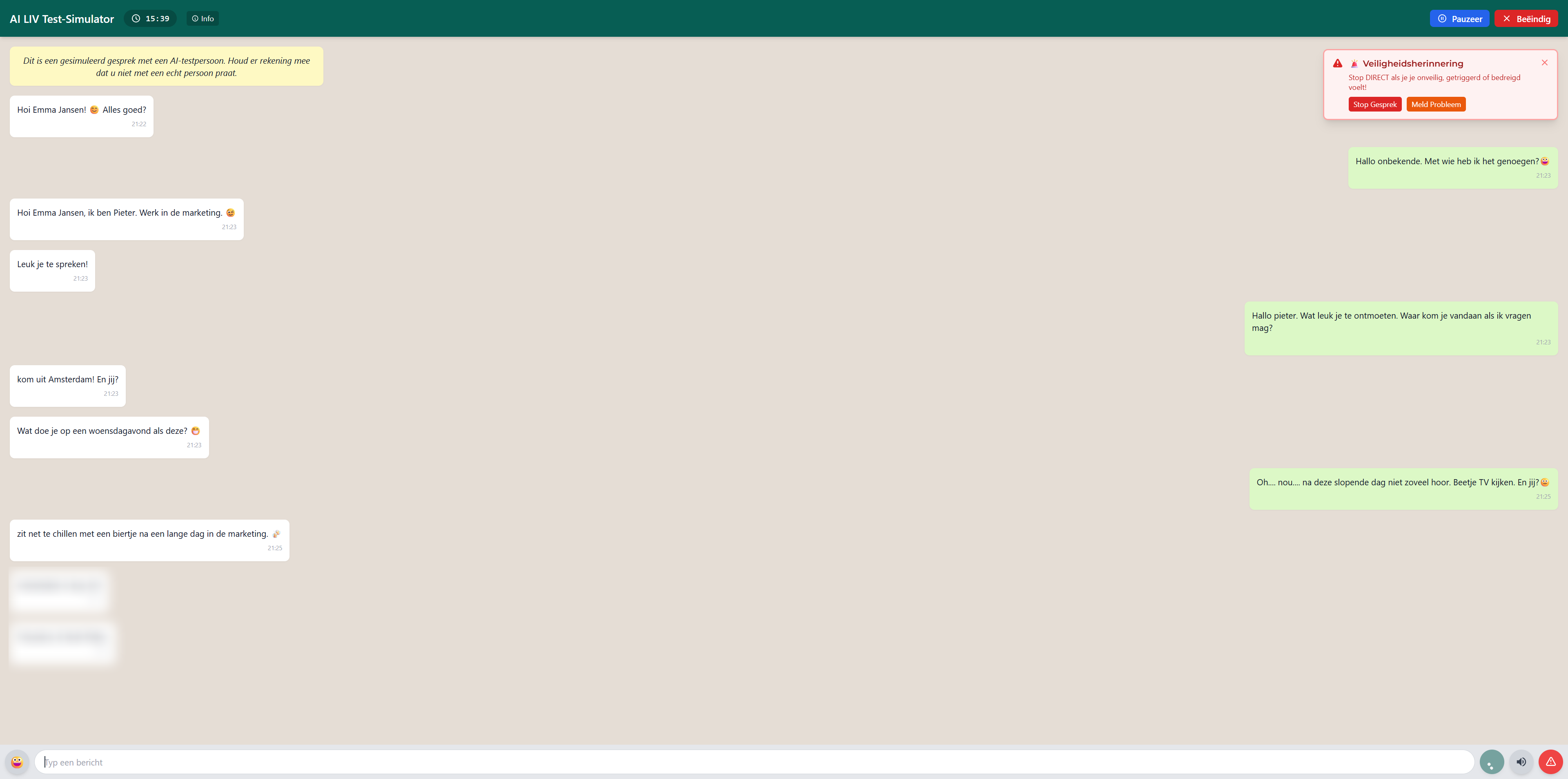
Send your first message. From that moment 1 credit is used. Cancel before the first message? Your credit stays.

Step 5: Start chatting – Screenshot: first message in chat
🔍 Click to enlarge
6

📱 Finish conversation

After a maximum of 20 minutes the conversation ends automatically. You can also end the conversation earlier – your report will still be generated.

Sub-steps before the chat:

  1. Chat in action
  2. Continue conversation
  3. AI responds
Step 6: Finish conversation – Chat in action: Screenshot: chat interface in action
🔍 Click to enlarge
Step 6: Finish conversation – Continue conversation: Screenshot: chat interface in action
🔍 Click to enlarge
Step 6: Finish conversation – AI responds: Screenshot: chat interface in action
🔍 Click to enlarge
7

📧 Receive report

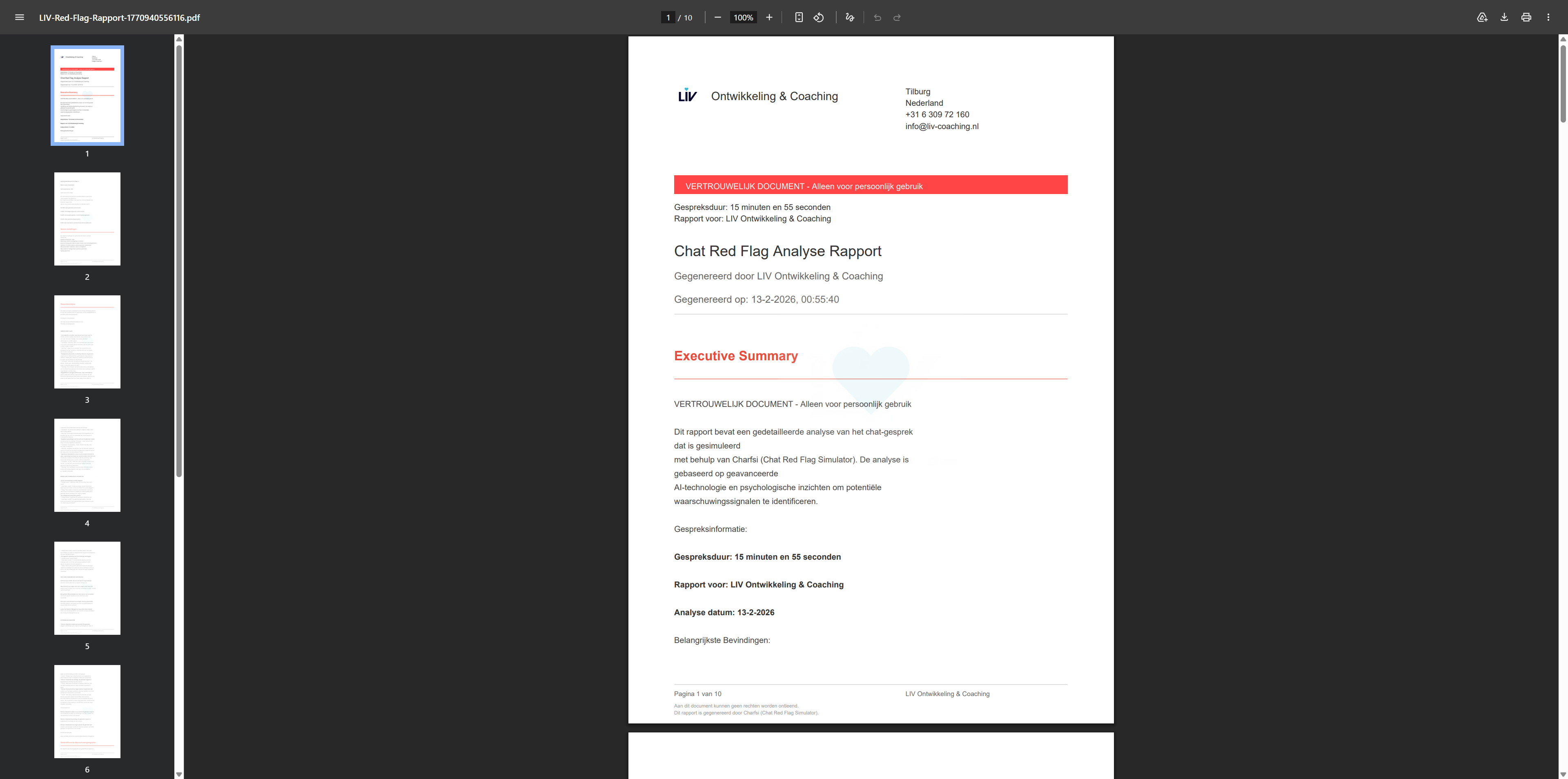
Report generation takes an average of 2–3 minutes. After the conversation you can download the report directly (PDF, Word or HTML) on screen. You also receive it automatically by email. Only you have access – fully discreet and confidential.

Sub-steps before the chat:

  1. End conversation
  2. Report by email
Step 7: Receive report – End conversation: Screenshot: chat interface in action
🔍 Click to enlarge
Step 7: Receive report – Report by email: Screenshot: report or email confirmation
🔍 Click to enlarge

Need further support?

💬

Coaching sessions & programmes

Want to turn your insights into concrete steps? Our coaches are happy to help – in a single session or a custom programme.

View coaching →
🔄

Extra Charfsi credits

Test with a different AI persona or apply your new insights – discover if your conversation partner reacts differently. More practice means more confidence.

Buy credits →